Secrets Manager
AI Admin Panel stores sensitive values — starting with your AI provider API keys — in a dedicated secrets manager (OpenBao) instead of only encrypting them in the same database as everything else. This page explains what that means for you in plain terms. You never interact with the secrets manager directly — the panel does that on your behalf, automatically, at install time.
The safe-deposit-box analogy
Think of your panel's regular database as a filing cabinet: useful for records, but if someone picks the lock, everything inside is readable at once. The secrets manager is more like a bank's safe-deposit box system bolted on next to that cabinet — a separate, purpose-built vault with its own lock, its own access log, and boxes that are only ever opened by presenting the right credential for that specific box. Storing a key in a safe-deposit box instead of the filing cabinet doesn't change what's inside it — it changes how much a single break-in can reach.
That's the shift here: sensitive values move out of the general-purpose encrypted column they used to share with everything else, into a system built for exactly one job — holding secrets — with its own per-customer compartments (see below) so that no customer can ever read another customer's box.
What's stored there today
The secrets manager holds:
- AI provider API keys (Phase 1) — both your platform-wide "Panel AI" key(s) in Settings and any per-customer AI provider keys.
- Deployed-service credentials (Phase 2) — the passwords and tokens a template generates when you deploy it: the database superuser password, an object-store root password, a gateway admin token, and so on.
Every customer also gets their own private compartment (a "namespace") inside the secrets manager the moment they're created, and it's removed automatically when the customer is removed. Admin-managed services (deployed without a customer) use a shared admin compartment. Future releases will extend what lives in these compartments (see the roadmap in docs/research/openbao-integration.md in the repository for what's planned) — this page will grow with them.
How service credentials work (Phase 2)
When you deploy a template, the panel generates its secrets straight into the vault and stores the service's configuration with markers ({{secret …}}) in place of the real values — so the saved configuration never contains a plaintext password. The real values are put back only in-memory, at the moment the container starts (and on redeploy, Git deploy, or when you reassign the service to another customer), and only ever from the service's own compartment — one customer's service can never read another's.
You don't have to think about any of this. A service's Credentials card still shows the real password (with a small "vault-backed" indicator), the reveal/copy buttons work as before, and the value is identical to what the running container uses. Two safety properties are worth knowing:
- A broken deploy never takes down a healthy service. If the panel can't reach the vault to resolve a secret during a redeploy, it stops before touching the container that's already running — the old one keeps serving.
- Nothing is left behind or stranded. An older service created before this feature moves its credentials into the vault on its next redeploy (kept exactly as-is, never regenerated), the secrets follow the service when you reassign it to a different customer, and they're removed when the service is deleted.
Rotating a secret
Every generated secret can show a Rotate button on the service's Credentials card (and on the Secrets page below) — one click, no terminal, no manual password-juggling. What happens depends on what kind of secret it is:
- Database passwords (PostgreSQL, MySQL/MariaDB) get a real credential change: the panel changes the actual database user's password, then restarts the containers that use it — the old password stops working and the new one takes over. Nothing is ever left half-changed: if the database-side change fails, the vault is rolled back to the working password and nothing is touched; if only the restart step fails, the credentials already agree and it's safe to click Rotate again.
- Other generated secrets (session keys, tokens) rotate by generating a fresh value and restarting the service — there's no external system to reconcile, so this is the whole operation.
- A few things intentionally sit outside this system for now: an application's own built-in admin account (for example, a WordPress admin login) isn't vault-managed, and an older service that hasn't yet been redeployed under Phase 2 shows a "legacy secrets" hint. For anything without a Rotate button, redeploying the service is the honest equivalent — the panel will never show a button that doesn't do what it says.
Every rotation keeps its full version history (with timestamps), and you can restore an older version the same way — restoring writes that old value forward as a new version, so the history only ever moves forward and nothing is silently rewound.
Pointing one service at another's secret
Some deploys need one service to use a credential that lives on another one — a web app that needs its database's password, for example. Instead of copying a password by hand (and having to update it everywhere if it ever changes), the environment-variable editor offers a "use a stored secret" picker: pick the secret from a dropdown and the panel inserts a reference for you. You never type any syntax by hand.
A reference looks unmasked in the editor (there's nothing to hide — it's a pointer, not the secret itself) and is resolved to the real value only at the moment a container starts, always scoped to the same customer — a reference can never reach across to another customer's secrets. If a reference ever stops resolving (the secret it points to was deleted, for instance), the panel warns you when you save and refuses to deploy with an unresolvable reference, rather than silently deploying a broken container.
What you'll see in the product
Settings → Security → Secrets shows a read-only status card (requires the secrets.view permission, granted to Admin by default):
- Backend health — healthy / degraded / running in legacy mode.
- Version, with a warning banner if the running secrets-manager version has fallen behind the currently-supported minor release line.
- Namespaces vs. customers — how many per-customer compartments exist versus how many customers you have, so a mismatch is visible at a glance.
- AI key migration progress — on an upgrade from a pre-Phase-1 install, a background job copies existing AI provider keys into the secrets manager; this shows how many keys have moved.
A separate Secrets page (its own nav entry, gated on the same secrets.view / secrets.manage permissions) is where you actually browse and manage what's stored — this is the credential plane, not a status readout. It's organized into tabs:
- Services — every generated service secret, grouped by service, with its class (env / Postgres / MySQL), a masked value with an audited "Reveal" button, version history, and Rotate where supported.
- AI — the same browse/reveal/version experience for AI provider API keys.
- Platform (operator only) — platform-scope secrets that don't belong to any single customer, plus a customer picker to look at any customer's plane. Customers signed into their own portal see the same page scoped to their own account, with no Platform tab and no customer picker — there is no view from the portal that reaches another customer's, or the operator's own, secrets.
You won't find raw secrets-manager terminology (namespaces, KV mounts, seals) anywhere else in the product — "Secrets" is the only vocabulary a user needs.
The honest threat model
No security control is absolute, and it's worth being precise about what this one does and doesn't do:
- It protects data-at-rest. If a disk, a volume backup, or a database dump is stolen without also stealing the encryption material that unlocks it, the secrets inside stay unreadable.
- It does not protect against someone who already has root on your server. A full host compromise is a total-loss event for every secret on the box — this system doesn't change that, and no software-only control fully can. The real defenses against that scenario are host-level: SSH keys instead of passwords, a minimal open-port surface, and keeping the box patched. Concretely:
docker inspectas root on the host still shows a running container's resolved environment variables — that was true before this feature existed, it's true for every competing panel, and it remains unchanged. What actually changed is this: your panel's own database dumps no longer carry any live generated secrets, every access and every rotation is audited, and rotation is a button instead of a manual redeploy. The vault's Raft storage snapshots and its static unseal key are the crown jewels of this system — back them up and protect them with the same care as a root SSH key, never as an afterthought.
The full technical threat model, backup/restore steps, and key-rotation procedure live in docs/runbooks/openbao.md in the repository — operator-facing detail that doesn't belong in end-user docs, but is there for anyone who wants the full picture.
Architecture at a glance
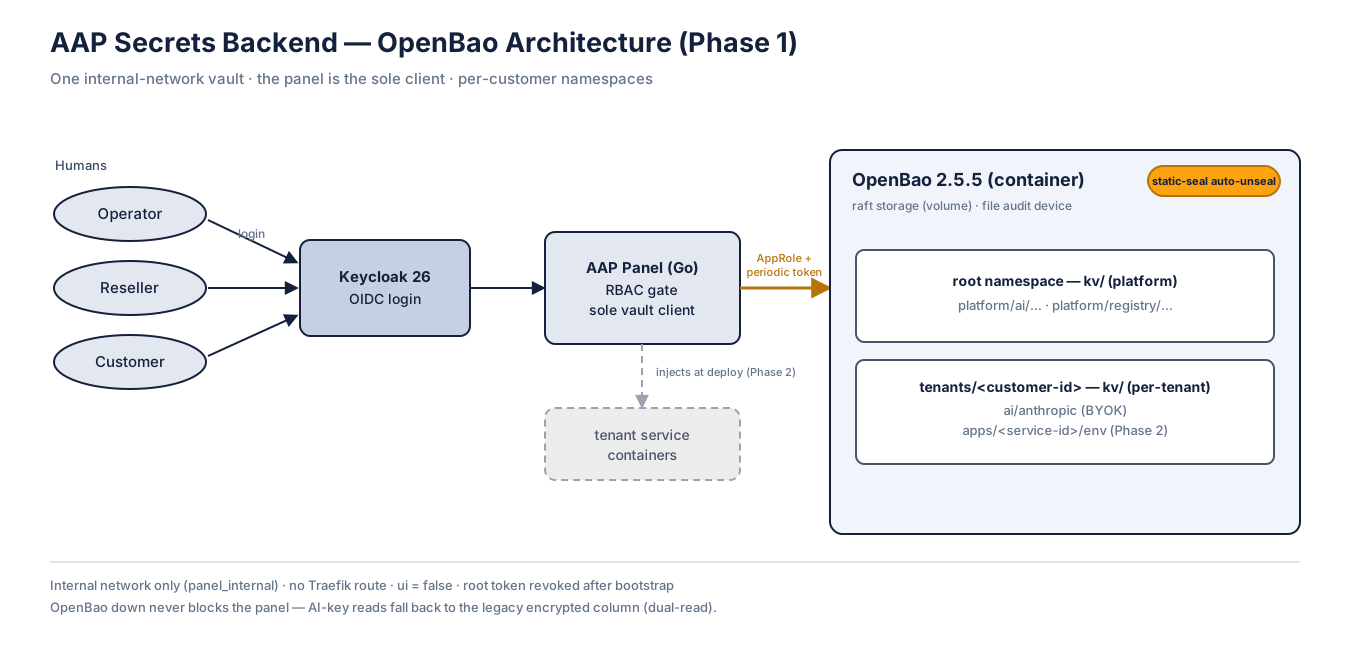
The panel is the only thing that talks to OpenBao. People sign in through Keycloak as they always have; the panel's existing permission checks decide what each person can reach. Each customer gets their own namespace inside the one vault — a blast-radius boundary, not a wall against the panel itself (the panel is already fully trusted). If OpenBao is ever unreachable, the panel keeps running and AI-key reads fall back to the older encrypted database column, so nothing breaks.
No action needed
This is fully automatic. If you're running an existing install, the upgrade brings the secrets manager online and migrates your existing keys into it in the background — there is no wizard step, no manual migration, and no terminal command to run. If you'd rather not run it at all, an operator-level escape hatch (SECRETS_BACKEND=file) exists for edge cases, but the default — and the recommended setting for every install — is on.