How AI works in AI Admin Panel
"AI" shows up in a few different places in the panel, and they do genuinely different jobs. This page explains — in plain terms — what each one is, and then walks through the newest piece: letting a customer bring their own AI provider key and have the panel inject it into the apps they deploy.
The three things called "AI"
Think of it like electricity in a building. There's the generator in the basement, the meter and fuse box that decide who gets power and how much, and the appliances in each tenant's unit that actually use it. "AI" in the panel splits the same way:
- The engine that runs models. The stack ships with a bundled inference engine (Ollama) plus a small gateway in front of it, the same way it ships with a bundled database. It runs on the panel's private network — no public port, no per-tenant keys yet — so a fresh install has something that answers immediately. This is the "generator in the basement."
- AI apps your customers deploy. The template catalog has a whole AI category — Open WebUI, LibreChat, Flowise, Dify, LocalAI, and many more. Each one deploys as that customer's own service (their container, their slice). These are the "appliances."
- AI injected into a deployed app. Many of those app templates need an AI provider to point at. Instead of making the customer paste a key into every app, the panel can inject an AI source into the app's own environment variables at deploy time. Which source gets injected is exactly what the rest of this page is about.
Engine vs. gateway. People often say "the AI" to mean one thing, but two containers cooperate: the engine (Ollama) actually loads and runs a model, and the gateway (LiteLLM) sits in front of it presenting an OpenAI-compatible door. You configure sources; the panel wires the plumbing.
The bundled model is chosen for your box, and pulled for you
A fresh install pulls a default model automatically so the bundled AI answers on the first request — you never have to SSH in and run ollama pull yourself.
Which model it pulls depends on how much memory your server has, because the showcase model is large:
- Capable box (≈12 GB RAM or more) →
deepseek-r1:7b, a strong reasoning model (~8 GB working set). - Small box (under ≈12 GB) — the size a one-click marketplace deploy often lands on → a lighter
llama3.2:3binstead. The big model would run out of memory and crash there; the lighter one just works.
This is decided once, at install time, and the gateway is configured to match — so there's no crash, no "model not found," and nothing to pull by hand.
Which one did I get? The install log prints the choice ("metered AI will run …"), and the live answer is always in
litellm-config.yamlon the server (themodel:line). The gateway's model name staysdeepseek-r1on every box so apps that call it keep working unchanged; on a small box that name simply routes to the lighter model, priced at its own (lower) rate. To run the big model on a small box, add more RAM and re-pull it from the admin AI Models page.
One more surface you'll see but that isn't in scope here: the admin AI Models page (a client for the bundled engine, so you can see which models are loaded). Per-customer AI metering — selling access to your gateway under a budget — is covered below in Metered AI.
Bring your own AI key
By default, apps that use AI injection point at the operator's shared source. But a customer may want their deployed apps to use their own provider account — their own OpenRouter, OpenAI, Anthropic, or self-hosted Ollama key — so usage bills to them and runs under their own limits. That's the "bring your own AI key" (BYOK) capability.
It's off until you turn it on, and you turn it on through a cascade — the same global → plan → customer shape the panel already uses for other optional features.
The capability cascade (operator view)
You decide who can use BYOK at three levels, each one narrowing the one above it:
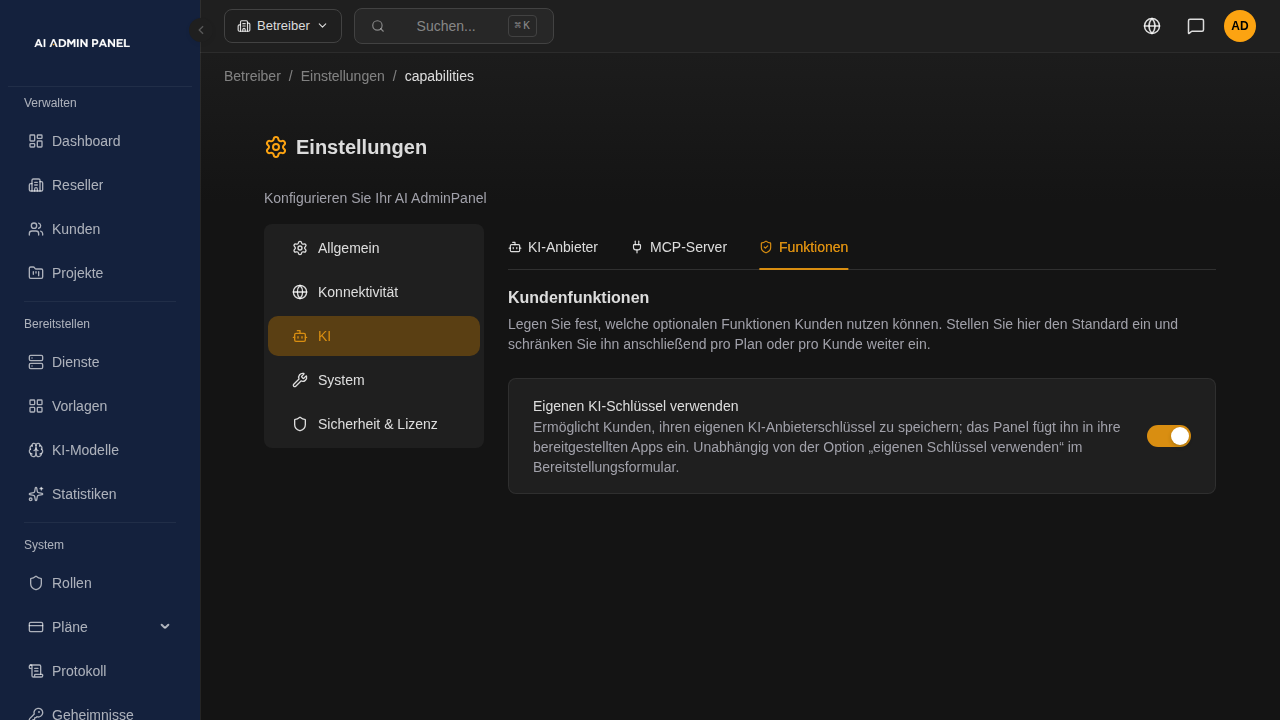
Global default — Settings → AI → Capabilities. One switch turns the whole feature on or off for the install. Fresh installs ship it off: nobody sees it until you decide to offer it.
Per plan — in the plan editor, each optional capability has a three-way choice: Not included (the plan doesn't offer it), Included (every customer on the plan gets it), or Explicitly off (force it off for this plan even if a higher tier is on). This is how you make BYOK a selling point of your "Pro" tier and leave it out of "Free".
Per customer — a customer's detail page shows the effective state (and why — "from the plan default", "disabled by administrator", and so on) plus an override: Inherit, Enable, or Disable, with a note field so the next operator knows why you made an exception.
The rule is simple: a global-off or a suspended account wins over everything (the feature is hidden as "disabled by your administrator"); otherwise a customer override beats the plan default, and the plan default beats "not included". If nothing turns it on, it stays off.
Two different "bring your own key" toggles — don't confuse them. The deploy form already has a per-deploy "bring your own key" option for pasting a key into one app. The capability described here is the account-level version: the customer stores a key once, in their own vault space, and the panel injects it into every app they deploy that uses AI. The capability switch is independent of the deploy-form option.
The customer's view
When BYOK is switched on for a customer, a new AI page appears in their portal (under My Services). There they store their provider key and choose how it's used.
The key is write-only: once saved it's kept in the customer's private, encrypted vault space and is never shown back — not in the form, not in the API. To change it they type a new one; leaving the field blank keeps the stored key.
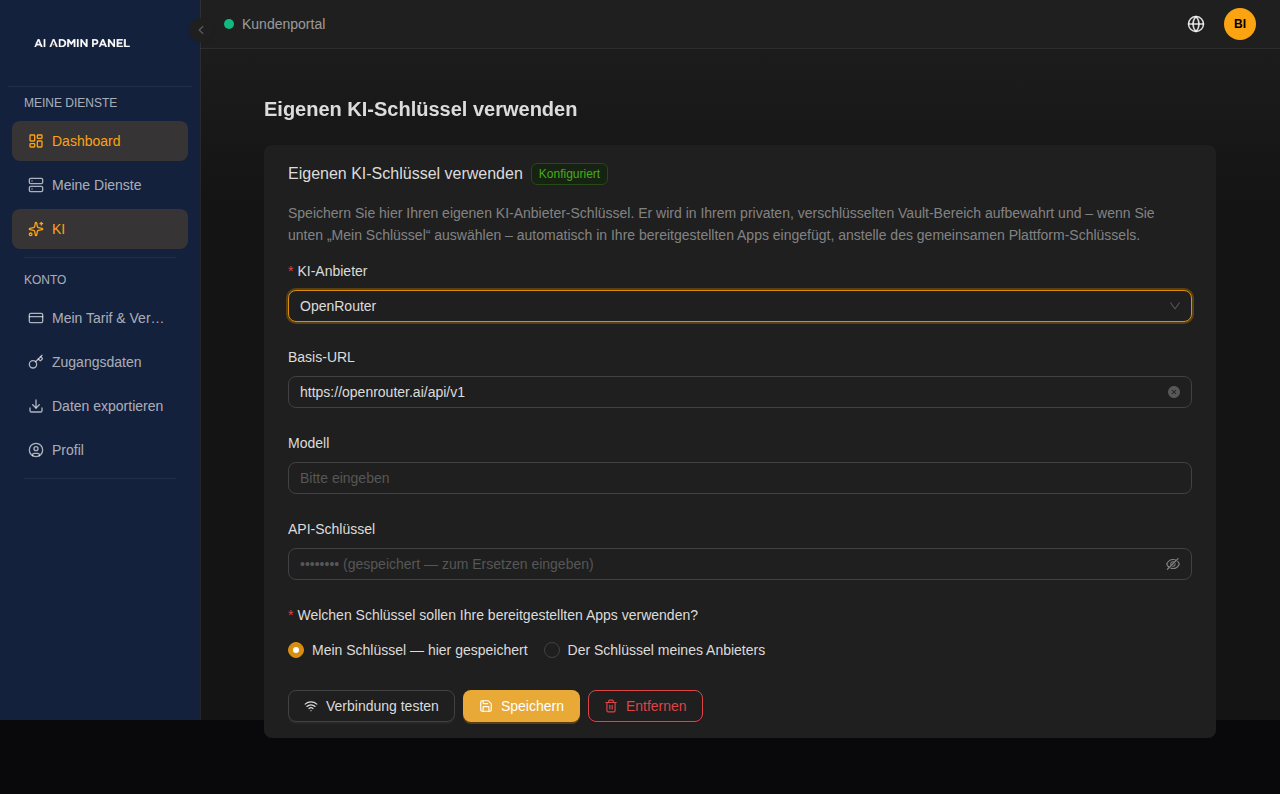
The choice that matters most is the required key-usage picker: "Which key should your deployed apps use?" — My key or My provider's key. There is no default on first save: the customer has to make the call deliberately, because it decides whose account pays for every future deploy. Pick My key and the panel injects their stored key into the apps they deploy; pick My provider's key and their apps keep using the operator's shared source, even though a key is on file. They can flip the choice at any time without re-entering the key.
When it's switched off
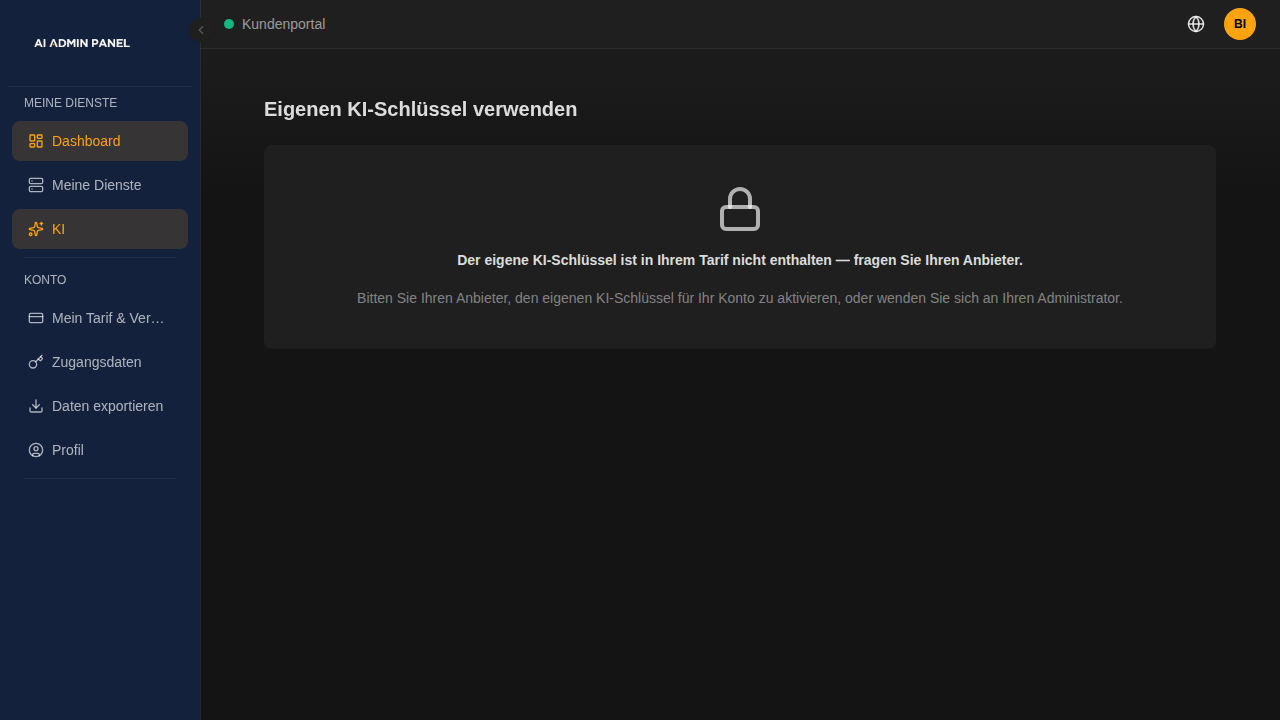
Because the feature is visible-but-locked rather than hidden, a customer who isn't entitled to it still sees the AI page — with an honest explanation instead of a form. The wording follows the reason:
- "disabled by your administrator" when it's turned off globally or the account is suspended, and
- "not included in your plan — ask your provider" when it's simply not part of what they've bought.
Where the key lives, and the honest caveat
A stored BYOK key goes into the customer's own compartment of the secrets manager — the same per-customer vault namespace used for service credentials — never into a shared table and never into the panel's database dumps. At deploy time the panel reads it from there and places it into the new container's environment, and only ever from that customer's own compartment: one customer's key can never reach another's app.
The same honest note from the secrets page applies here: docker inspect as root on the host still shows a running container's resolved environment variables. That's true of every panel and every injected value, and it's unchanged by this feature. What BYOK gives you is that the key is stored in a purpose-built vault rather than a general-purpose database column, every save and read is audited, and the customer — not the operator — controls whether it's used.
Metered AI (sell your own AI)
BYOK is for the customer who has their own provider account. Metered AI is the opposite offer: the customer has no provider account, and you sell them access to your bundled gateway — under a budget and rate limit you set, billed to a meter you can see. Think of it as sub-metering the electricity in the basement: same generator, but each tenant gets their own keyed meter and a monthly cap.
It rides the same capability cascade as BYOK — a second switch, "Metered AI" (usage-based AI), in Settings → AI → Capabilities, with the same per-plan (not included / included / explicitly off) and per-customer (inherit / enable / disable) narrowing. Fresh installs ship it off.
How it works, end to end
- You turn it on globally, then Included on the plans you want to sell it on.
- You set the limits on the plan (or override per customer): a monthly budget (in your currency), a tokens-per-minute cap, and a requests-per-minute cap. Leave any blank for unlimited. The budget is the money cap; the two rate limits protect the shared engine from a runaway loop.
- The customer mints a key from their portal AI page — one click, "Create my gateway key" — and copies it from a show-once dialog (it's never shown again; they rotate to get a new one). Behind the scenes the panel creates a budgeted user and key on the gateway and stores the key in the customer's private vault space.
- Their deployed apps are wired automatically. Any AI app they deploy that supports injection gets pointed at the gateway with their key — no pasting. They can also call the public endpoint directly from their own scripts:
https://ai.<your-domain>/v1(OpenAI-compatible). - The meter moves. Usage is imported every few minutes and shown as a spend meter on the portal card (warns at 80%, marks exhausted at 100%) and as "Spend this month" on the customer's admin detail page. When the budget is hit, the gateway itself refuses further calls until the next cycle.
The DNS record you need
The public gateway lives at ai.<your-domain> (only the OpenAI-compatible /v1 path is exposed — the gateway's own admin UI and key-management routes stay on the private network). Point an ai. A/AAAA record at the same IP as your panel. It's optional — you only need it when you switch Metered AI on — and it's ordered as a separate TLS certificate, so if the record is missing the failed certificate request can't take down your panel or login page.
The price you charge
The gateway prices each model in litellm-config.yaml (the model_info block: input_cost_per_token / output_cost_per_token). The bundled local model ships with a sensible default rate; this is the price your customers are billed against, so edit it to your own price list. (An in-panel pricing editor is on the roadmap; for now it's that one file.)
Two honest limits (v1)
- G1 — the operator source is still open. Metered AI governs the keyed gateway. A customer who is not on Metered AI and deploys an app with the default "Provider AI / Local AI" source still reaches the shared engine on the private network, un-metered — exactly as before this feature. Metered AI is how you sell keyed, budgeted access; it doesn't wall off the shared engine you already offered.
- G2 — native-Ollama apps bypass the meter. A handful of templates talk to Ollama in its native dialect rather than the OpenAI-compatible door. Those get pointed at the engine directly and their usage doesn't pass through the metering gateway. The OpenAI-compatible apps (the large majority) meter correctly.
Upgrading an existing install
Metered AI adds a database and an environment variable to the AI gateway, so an install made before this release needs a one-time bring-up (new installs get it automatically). Image-swap updates don't rewrite your compose/.env, so apply it once on the host:
# 1. give the gateway its own database
docker exec aiadminpanel_postgresql psql -U aiadminpanel -c "CREATE DATABASE litellm;"

# 2. tell the gateway where that database is (uses your existing DB password)
grep -q LITELLM_DATABASE_URL /opt/aiadminpanel/.env || \
  echo "LITELLM_DATABASE_URL=postgresql://aiadminpanel:$(cat /opt/aiadminpanel/secrets/db_password)@postgresql:5432/litellm" \
  >> /opt/aiadminpanel/.env

# 3. refresh docker-compose.yml + litellm-config.yaml from this release, then:
docker compose up -d litellm            # first boot runs the gateway's own migrations
docker compose up -d --no-deps --force-recreate panel
Then add the ai.<your-domain> DNS record above. (A built-in updater path for compose-changing releases is on the roadmap; until then this is the documented step.)
No terminal, ever
Every part of the customer-facing flow is done in the UI. The operator flips switches in Settings, on a plan, or on a customer, and sets budgets there; the customer stores their BYOK key or mints their gateway key and picks how it's used from their portal. The one exception is the existing-install Metered AI bring-up above — a one-time host step for boxes installed before the feature existed; new installs need no terminal at all.