Git Deployment
Git Deploy clones a repository, builds its application and starts containers. Use it when your project needs a build; Compose Deploy expects pre-built images.
Configure the deployment
Open Deploy → Git Deploy and enter a service name, repository URL, branch or tag, customer assignment and resource limits. The form offers automatic build detection, Dockerfile and Nixpacks. Set Application port to the port your app listens on; the pipeline also supplies it as the PORT environment variable.
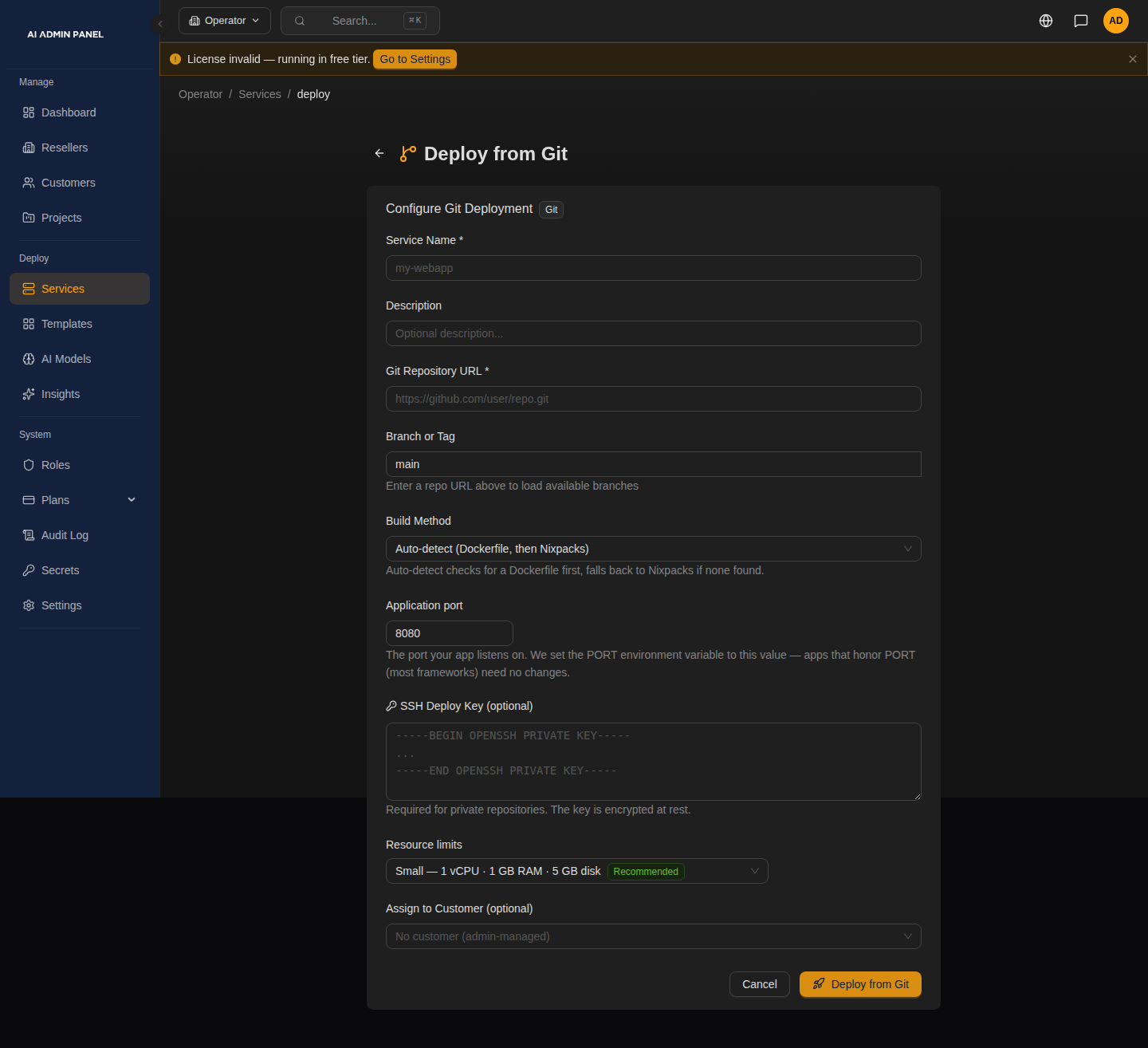
The key field shows placeholder text only. The screenshot's auto-detection hint omits Compose; the detection order below describes the build worker's behavior.
For a private repository, use the Deploy Key field with the repository's SSH access configuration. It is not a username/password form. Keep private keys out of repository URLs, logs and support messages.
Automatic build detection
The worker checks the repository root in this order:
docker-compose.yml,docker-compose.yaml,compose.yml,compose.yaml.Dockerfile.- Nixpacks when neither is present.
An explicit build-method selection overrides detection. In the repository Compose path, the worker builds declared build contexts and pulls declared images. This differs from pasted Compose, which rejects build:. The Git form has no standalone monorepo Build Context field; organize build paths in the repository's Dockerfile/Compose configuration.
Watch build/deployment progress, inspect errors and then verify the application at its service URL. DNS and certificates have their own prerequisites; see Domains and DNS.
Webhook redeployment
For Git services, the Overview sidebar includes webhook controls. Create a webhook, copy its URL and signing secret into the Git provider's webhook configuration, and select the matching provider and branch behavior. Preserve the secret securely; inspect webhook results and deployment progress after a push.
A webhook requests a rebuild/redeployment. This guide does not promise a rolling restart or zero downtime. Plan a recovery path before enabling automatic changes to an important service.
Troubleshooting
Image refused: reserved labels
After the build, the panel inspects every image the deployment will run. An image that ships a label whose name starts with traefik. or aiadminpanel. (upper or lower case) is refused, and there is no override. Those labels control public routing and service ownership, and Docker copies an image's labels onto its container, so only the panel may set them.
What to do: remove the LABEL traefik... or LABEL aiadminpanel... lines from the repository's Dockerfile (or choose a base image without them), push, and deploy again. For an image you do not build yourself, rebuild or re-tag it without those labels, or use a different image. The service's deployment history names the image and the labels.
The check runs before any container is stopped, so a service that was already running keeps running and keeps its status; only the deployment is marked failed. You never need routing labels: the panel generates the route from the Application port and the service's domains.