Managing licenses
Once a license exists, the Licenses page in Partner Center is where you run it: pause it, restart it, end it, or move it to a different edition. Issuing a new license is covered separately — this page is about everything that happens afterwards.
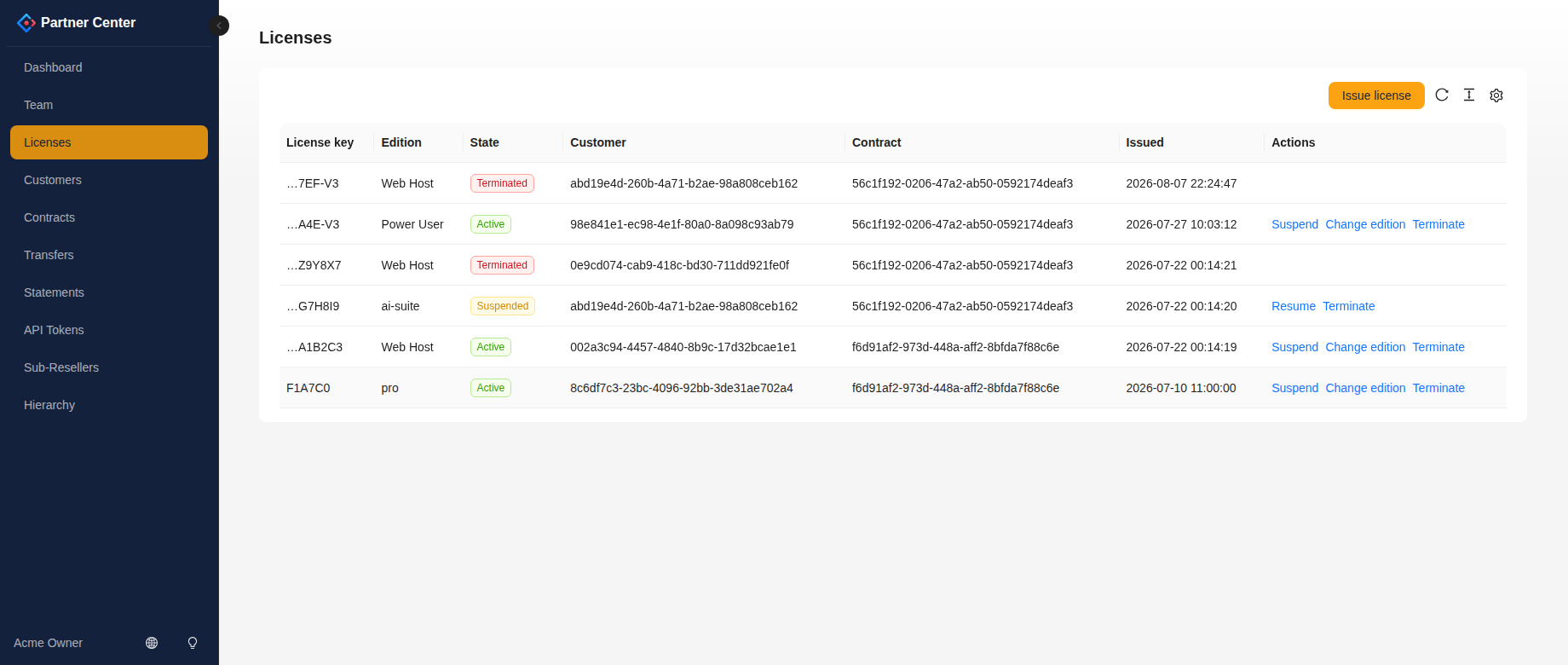
Your Licenses page shows every license in your account and in any sub-resellers below you, so a distributor sees the whole downline's licenses in one table.
Who can change licenses
| Role | Suspend / resume / terminate / change edition? |
|---|---|
| Owner | ✅ Yes |
| Member | ✅ Yes |
| Billing | ❌ No — read + export only |
| Read-only | ❌ No — read + export only |
If the Actions column is empty for you, your role can't change licenses.
The states a license can be in
The State column is the single most useful thing on the page:
| State | What it means |
|---|---|
| Active | Working normally, and billing according to its contract. |
| Trial | A trial license from a trial contract. Working, never charged. |
| Suspended | Paused by you (or by us). Reversible. |
| Terminated | Ended deliberately and permanently. Not reversible. |
| Expired | Ran past the end of its validity on its own. |
| Pending | Created but not yet fully minted — a transient state you'll rarely catch. |
Terminated and Expired are the two terminal states. Everything else is a license that is still live in some sense, and that distinction matters in two places: terminal licenses stop accruing on your statement, and only terminal licenses let you delete the customer they belong to.
Narrowing the list
Two controls sit above the licence table, and both are about finding the licence you actually came for.
The status facets are the row of buttons directly above the table — All, Active, Suspended and so on, each with a count. Clicking one filters the table to that state; clicking All puts everything back.
A state with no licences in it does not appear. If you never terminate a licence, you will never see a Terminated button. That is deliberate: a button reading "Terminated (0)" promises a view and delivers an empty table, and on a healthy account most states are zero, which would bury the two that matter. For the same reason the row disappears entirely when every licence is in the same state — there would be nothing to choose between.
The current-customer selector is in the header bar, at the top of the page. Pick a customer and the licence list shows only that customer's licences; a blue bar appears above the table telling you what you are looking at, with Show all customers to clear it and Open record to jump to the full customer record.
The choice sticks — across pages and across a browser refresh — so you can work one account for an afternoon without re-selecting it. It applies to the Licenses and Transfers screens, and the selector only appears on those two: Contracts, Statements and API Tokens belong to a partner rather than to a customer, so there is nothing there for a customer filter to do.
The two controls combine. Scope to a customer and pick Suspended, and the counts on the facets describe that customer only.
Choosing your columns
The settings icon at the top right of any table opens the column list. Untick a column to hide it, and Reset puts the original set back.
Your choice is remembered on that device, per table, so a table you tidied up stays tidy on your next visit. It is a per-device preference rather than an account setting — the columns that make sense on a laptop are rarely the ones that fit a tablet.
The Internal ID column
On a wide screen the last column of the table is Internal ID — a long value like 9d8c7b6a-5e4f-3d2c-1b0a-9f8e7d6c5b4a. It's the identifier our database and the Partner API use for this license, and it's copyable.
You almost never need it. Quote the L- number instead — that's the one anyone at the other end of a support conversation will recognise. Reach for the Internal ID only when you're making an API call about this specific license. The same reasoning, and the same column, applies to customers and contracts.
The L- number and the Internal ID sit at opposite ends of the row deliberately: they look alike at a glance, and the mistake worth designing out is pasting a 36-character UUID into a ticket where an L- number was wanted.
Suspend and resume
Suspend pauses a license without ending it — the usual reason is non-payment. Click Suspend on the row; Resume puts it back to Active.
This is the tool for "they haven't paid yet", precisely because it's reversible. Nothing is destroyed, the license keeps its key and its history, and resuming needs no new key and no action from your customer.
Suspension changes the license at the license service. The panel observes it through license validation, whose timing and cached state affect when entitlement changes appear. This is not a command to stop running containers. Check the customer's License & Edition state rather than assuming an immediate shutdown.
Terminate
Terminate ends a license permanently. The portal asks you to confirm:
Terminate license
…? This cannot be undone.
Take that literally — there is no un-terminate. Terminating revokes the key at the license service, so the key itself is dead; you cannot resume it, and you cannot reissue that key. If the customer comes back, you issue a new license, which means a new key for them to activate.
Terminate is right when the commercial relationship has genuinely ended. When you're not sure — they might pay, they might return, you're mid-dispute — suspend instead and terminate later. The cost of suspending something you later terminate is nothing. The cost of terminating something you later needed is a new license and a customer who has to re-activate their panel.
Terminating does not delete anything historical: the license stays visible in the table as Terminated, and every statement line it already generated stays exactly as it was. Your books don't change retroactively.
Change edition
Change edition moves a license between product editions — Free, Power User, Web Host — in either direction. Upgrade or downgrade, same button.
Two rules the portal enforces, both worth knowing before you click:
Only an active license can change edition. A suspended, trial, terminated, or expired license refuses the change rather than accepting it. This is not an arbitrary restriction: an edition change rewrites what the license entitles the customer to, and doing that to a license whose state you aren't currently looking at is how you end up with a terminated license quietly holding a different entitlement. Resume a suspended license before changing its edition. A terminated or expired license needs separate renewal or reissuance; do not try to resume it.
Choosing the edition it already has does nothing. No change is recorded and nothing is billed differently — a safe no-op, so a double-click or a retry can't produce a duplicate entry in your history.
The change takes effect at the license service, so the customer's panel picks up its new entitlement on its next validation rather than needing a new key.
What it does to your bill
In v2.12.8, an edition change does not split metered billing into old and new edition rates. Statement computation uses the contract's unit price and owned days; edition_changed is recorded in the ledger but does not alter the billing segments. Confirm commercial terms with your account contact instead of assuming that changing the edition reprices the contract.
If your own account is suspended
Suspending your partner account, or an ancestor, blocks portal/API access for that branch. It does not suspend the licenses themselves or stop their billing. Ask your supplier to restore account access; license suspension is a separate operation.
Doing this automatically
Every action on this page exists on the Partner API too — suspend, resume, terminate, and change edition are all available to a token with read & write scope. If you run provisioning or billing automation, drive it there; these license actions are shared between the portal and the public API. Other portal workflows are not all exposed by the public token API.
Troubleshooting
| What you see | What it means |
|---|---|
| Actions column is empty | Your role is billing or read-only. Ask an owner or member. |
| "License is not active" on a change edition | Only active licenses qualify. Resume a suspended license; ask your account contact about trial, terminated, or expired licenses. |
| Resume doesn't appear on a terminated license | Terminate is permanent — there is no resume. Issue a new license instead. |
| Portal/API access fails for your team | Your partner account or an ancestor may be suspended. Contact your supplier. |
| A license you don't recognize | Your table includes every sub-reseller below you. Check the Customer column and your hierarchy. |