Root operations runbook
Every other page in this guide is written for a partner — someone who signs in, manages their own customers and licenses, and never sees the rest of the tree. This one is written for the people running the vendor side: the Vendor operations group in the sidebar, which only root-altitude staff can see at all.
If you are a partner reading this, nothing here applies to your account and none of these screens exist for you. Start at the Partner Center overview instead.
Where the vendor screens live
Vendor operations is the last group in the sidebar, below Organisation. It holds six destinations:
| Screen | What it answers |
|---|---|
| Partners | Every partner in the tree, indented by depth. The way into a single partner's record. |
| All transfers | Every transfer anywhere in the tree, plus the two tools that perform one. |
| Search | "Which partner owns this?" — one box across partners, customers and licenses. |
| Audit | The append-only ledger: what happened, when, and who did it. |
| Reconcile | Whether our records and keygen still agree. |
| All statements | Review, finalize and correct a partner's monthly statement. |
Two of these are deliberately named "All …". They are the whole-tree versions of screens a partner also has — Transfers in Commerce is scoped to your subtree; Statements in Billing is scoped to your own partner account, All transfers and All statements are scoped to everyone's. Same nouns, different altitude; the group header is what tells them apart.
Creating a contract
This is the single most common thing people cannot find, so it goes first.
The top-level Contracts screen in the Commerce group is read-only for partners by design — a partner never authors their own commercial terms. Root does, and root sees that same screen, which for a long time meant the product's only contract-creation surface was invisible from the place anyone looked for it. Two paths now exist and both work:
From the Contracts screen (fastest). Open Contracts. As root you get a New contract button in the toolbar that partners do not see. It asks you to pick the partner first — this screen has no partner in scope, unlike the tab below — and then opens the ordinary contract form.
From the partner's record. Open Vendor operations → Partners, click the partner's row, then the Contracts tab, then New contract. The partner is already in scope, so there is no picker.
Both paths open the same form and hit the same endpoint. Use whichever matches what you already have open.
What a contract sets
A contract is the commercial agreement licenses are issued against — pricing model, unit price, any capacity cap, trial length, and the validity window. A license cannot be issued without one, and only an active contract can be issued against: an ended or suspended contract is filtered out of the issuance picker rather than being offered and rejected.
Working with a single partner
Clicking a row in Partners opens that partner's record, which has seven tabs:
- Overview — status, the partner's place in the tree, and suspend/resume.
- Customers — that partner's customer book.
- Contracts — their commercial terms, and where you create a new one.
- Licenses — every license they hold, with the same lifecycle controls the partner has.
- Users — the people who can sign in to that account, and their roles.
- Tokens — their API tokens.
- Activity — two histories: what was done to this partner, and what this partner did. See Events and Actions below.
Each tab is deep-linkable with ?tab= — …/backoffice/partners/<id>?tab=contracts opens straight on Contracts. Worth knowing when you are pasting a link into a support conversation.
Suspending a partner
Status is shown as a colored tag on the Partners list; clicking the tag opens a confirmation dialog rather than changing anything immediately. A suspension is access-only — it stops the partner signing in and operating. It does not touch their licenses, and their end customers are unaffected.
The bulk subtree license tool
This tool supports suspend and resume across a partner subtree. It does not terminate licenses. The confirmation requires the partner's exact name. Each matching license is processed separately, and the response reports per-license success or failure; inspect those results before retrying. This is not an atomic all-or-nothing operation. License suspension is distinct from the partner access-only suspension above.
Finding things
Search is the support desk's screen. One box, three groups of results — partners, customers and licenses — matched on names, external references and human-facing identifiers. Identifiers match as substrings, so both C-10428 and 10428 find the same customer, and the identifier is displayed on every result so you can confirm the row is the one you were quoted.
You cannot search by a full license key, and no amount of trying will help. We only ever store the masked tail of a key and the keygen id — the plaintext key is never written to our database at all, so no query anywhere in the system could find a license by it. Ask the customer for the masked tail, the license identifier (L-90233), or their company name instead. The screen says this up front, before you type, for exactly this reason.
The ledger
Audit is a read-only window onto the append-only ledger. Filter by date, who, event, source, partner or license; expand any row to see its full JSON payload.
There is no customer filter here, deliberately — the customer's own record has an Activity tab that answers the same question better, with notes interleaved into the timeline. See Managing customers.
Four things to know when you read it:
- The application treats the ledger as append-only. Ordinary database writes are guarded against updates; this is not a claim against a privileged database operator changing enforcement. If something in it is wrong, the correction is a new event, never an edit.
- Paging is next/previous, not "page 7 of 40". The query returns a page of rows, not a total count, so a page count would be a fabrication. Next is available while a full page comes back. Changing any filter resets you to the first page.
- The filters are in the address bar. Every filter you set appears in the URL, so the view you are looking at is a link you can paste into a ticket, and the back button steps through an investigation instead of leaving the screen. This is also how a count on a partner or customer record opens the exact list it counted.
- Export CSV gives you the filtered list, not the page on screen. Set the filters you want, then export. If the result would exceed 5000 rows the file stops there and the panel tells you so — narrow the filters and export again rather than assuming the file is complete.
"Who" and the events that predate it
The Who column names the person who made the change: the email address they signed in with, or the calling partner's identifier when the change came through an API token and no person was involved. It is a different question from Source, which records only the channel — ui, api, reconciler.
Some older events show Not recorded instead of a name. This is not a display bug and it is not "nobody". Attribution was added to the ledger in a later release; events written before that release have no record of who performed them, and because the ledger is append-only they never will. We show the truth rather than a blank cell or a guess.
You can filter for exactly those events: choose Not recorded in the Who filter. That is deliberate — without it, applying any Who filter would silently hide every older event, and you would have no way to tell that from "this person did nothing".
Events and Actions
A partner record's Activity tab answers two different questions, and confusing them is easy:
| Question | Scope | |
|---|---|---|
| Events | What was done to this partner? | Records belonging to this partner |
| Actions | What did this partner do? | Anything performed by this partner's operators or its API tokens |
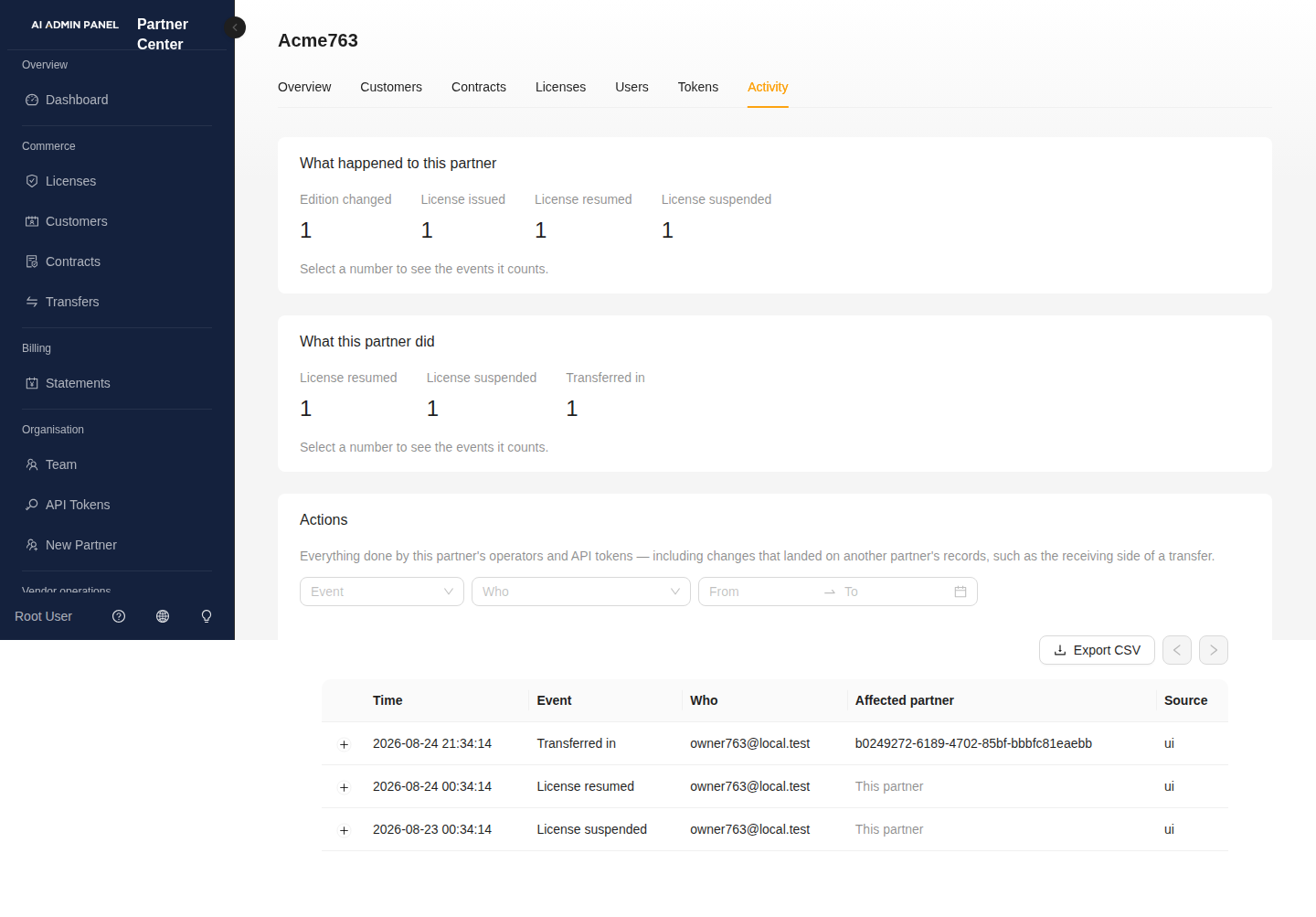
They are not the same list filtered two ways. When someone at a reseller transfers a license away, two entries are written: the outgoing one on the reseller, and the incoming one on the partner that received it. Only the first is an event of that reseller. Both are actions by it — and the second belongs to a different partner entirely, so it appears nowhere in any list scoped by partner. That row is the whole reason Actions exists as a separate view, and the Affected partner column is there so you can see at a glance which rows landed elsewhere.
Both roll up into counts at the top of the tab. Every count is a link. The Events counts open the Audit screen already filtered to that partner and event; the Actions counts filter the list directly below them. A count you cannot open would just be decoration.
Actions is root-only, and it stays that way: because it is scoped by who acted rather than by which partner owns the record, it can legitimately show a row belonging to another partner. That is safe for vendor staff, who can already read every row of the ledger through Audit, and it is not something we hand to a partner.
Reconciliation
Reconcile shows the most recent drift check between our ledger and keygen. It runs nightly and stores every result; you can also trigger one with Run now.
Three states:
- Clean (green) — both sides agree.
- Drift (red) — a license exists on one side and not the other. Both lists are shown, and clicking an id takes you into Search so you can find out who owns it.
- Failed (orange) — the check itself could not complete. A failed run is treated as drift and stored, never silently dropped: not knowing is not the same as being fine.
On a fresh install, before the first run has happened, the screen reads as "never ran" rather than as an error.
Transfers
All transfers lists every transfer in the tree and offers the two that move things:
- Transfer license — one license moves to a different partner and contract.
- Move customer book — an entire customer, and every license under it, re-homes to a new partner and contract in one transaction.
The sync status column is about keygen, not about the transfer itself. A whole-book move commits in our database first and syncs keygen metadata afterwards on a best-effort basis, so a row can be a completed transfer with a sync warning. Where that happens, a Retry button re-runs just the sync. A transfer showing a sync warning has still moved.
Statements
All statements is where a partner's monthly statement is reviewed and closed:
- The daily rolling job recomputes current-period drafts; vendor staff can also request computation for a period.
- You review it, drilling into a line for its per-license breakdown.
- Finalize closes it. Finalizing is what makes it the partner's bill.
- If a finalized statement turns out to be wrong, supersede it. That creates a new draft revision and leaves the original in place. Review and finalize the replacement separately.
There is no "edit a finalized statement" and there should not be — the same reasoning as the ledger. A finalized statement is a document someone has been sent; the correction is a new document.
What root has that partners do not
Worth holding in mind when you are reproducing something a partner reported:
- The whole-tree screens above. A partner's resource lists use its subtree; statements and tokens are own-account surfaces.
- Search by identifier across the whole tree. This is a security boundary, not a layout choice: identifier sequences are global, so a partner-reachable lookup would let anyone enumerate other people's records by counting upwards. The wall is enforced at the API, and pinned by the isolation test suite — not by the sidebar hiding the link.
- Contract creation, statement finalization, and transfers outside a partner's own subtree.
If a partner reports that something is missing, check whether you are looking at it from root altitude before concluding it is broken. Most "it disappeared" reports are an altitude difference.