How AI works in AI Admin Panel
The panel has separate AI configuration for its own tools and for deployed apps. Choose the right source before changing a key.
| Surface | Configuration and purpose |
|---|---|
| Panel AI | Settings → AI → AI Providers; used by the panel assistant and AI Deploy analysis |
| Provider AI | Operator's source for injection into compatible customer apps |
| Local AI | Bundled Ollama engine; LiteLLM provides an OpenAI-compatible gateway |
| BYOK | Customer's stored provider account, when the capability and chosen usage preference allow it |
| Metered AI | Customer gateway key with configured budget/rate limits and usage reporting |
A customer key does not configure Panel AI. If analysis or chat fails, check the Panel AI provider, endpoint, key and model, then test an actual request. A saved configuration or successful connection check does not prove every model call will succeed. The pending assistant-recovery UI changes are not part of v2.12.8.
Local models and deployed apps
The installer attempts to pull a bundled model and selects a smaller model on lower-memory hosts. Inspect the install result and AI Models page; a model choice does not guarantee enough memory, a completed download or a working answer.
Templates that declare aiInjection map the selected source to the environment variables the app expects. Templates without that mapping require in-app configuration. Review the selected template's instructions and actual app access. The catalog's AI Services page distinguishes source availability from a successful deployment.
Bring your own AI key
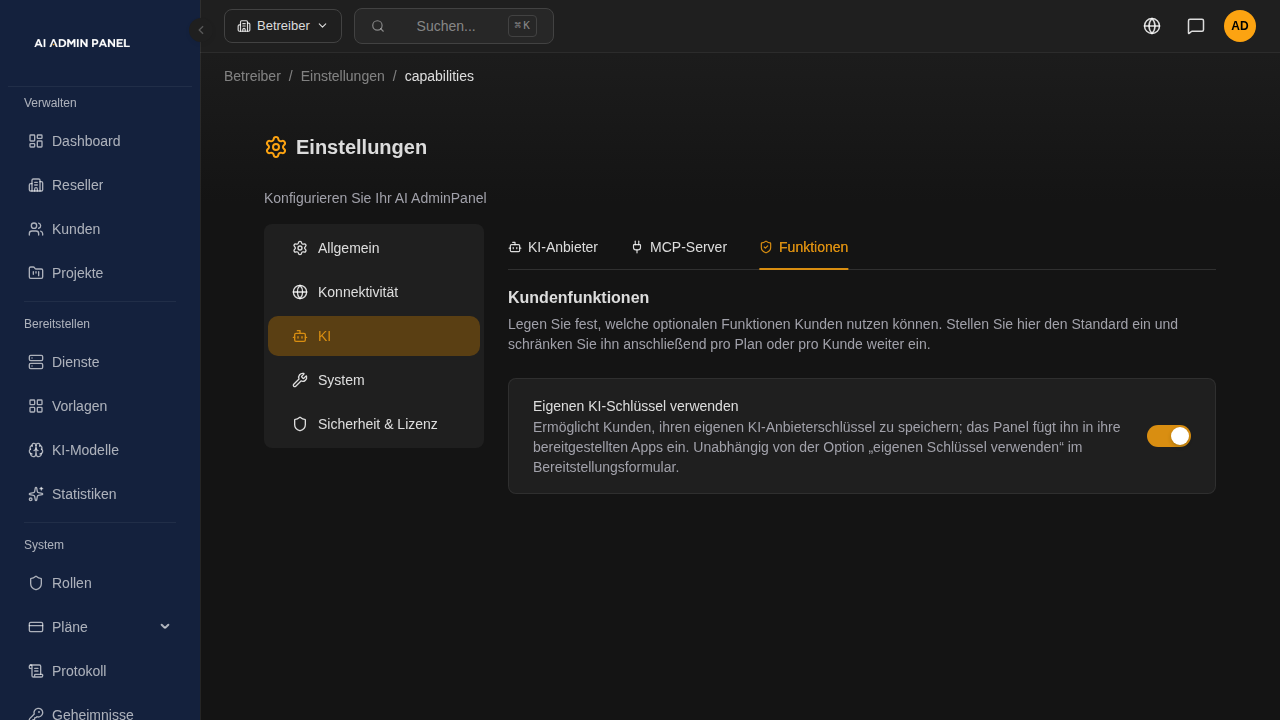
Enable BYOK globally in Settings → AI → Capabilities, include it on the customer plan and use a customer override where needed. Resolution requires an active plan, then checks the global switch, customer override and plan default. Absent settings default off. A globally disabled capability cannot be enabled by a customer override.
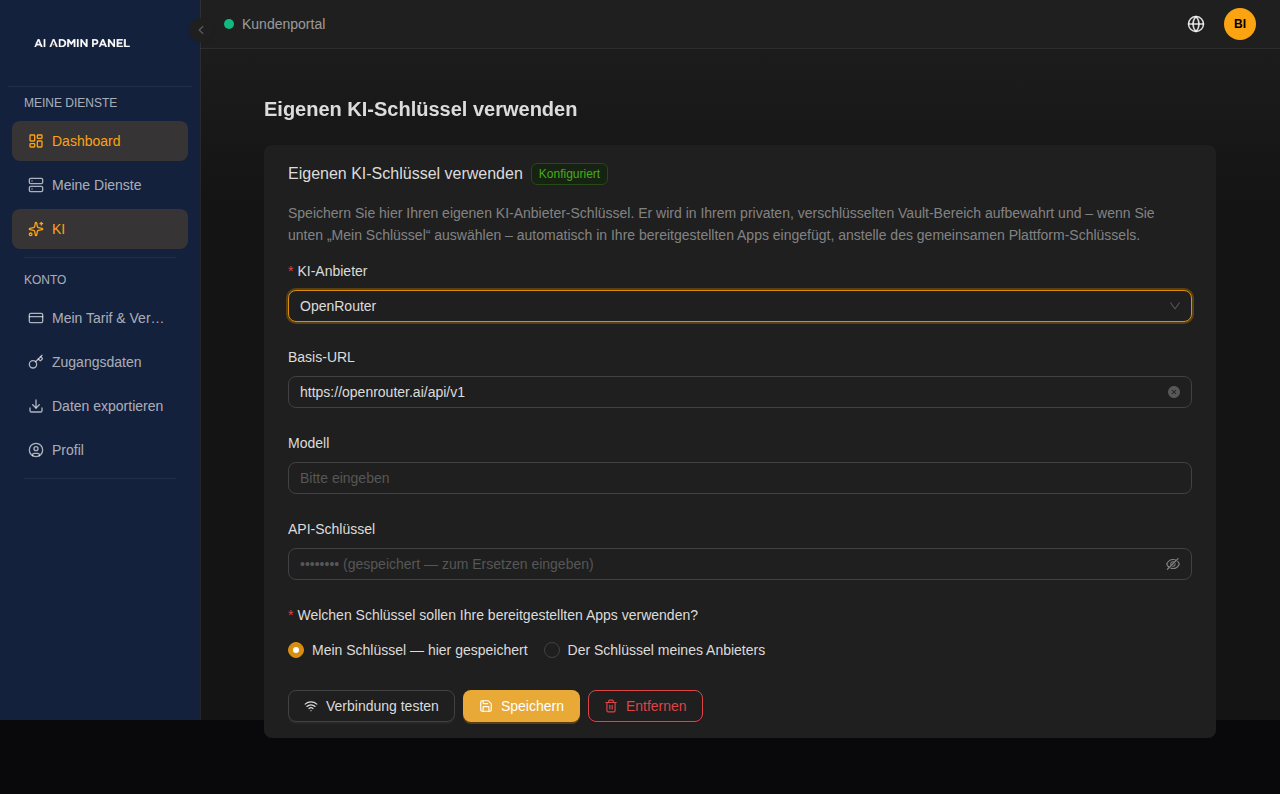
On the portal AI page, the customer saves provider details and explicitly chooses whether compatible deployed apps use My key or My provider's key. The account-level preference is separate from the per-deploy BYOK option.
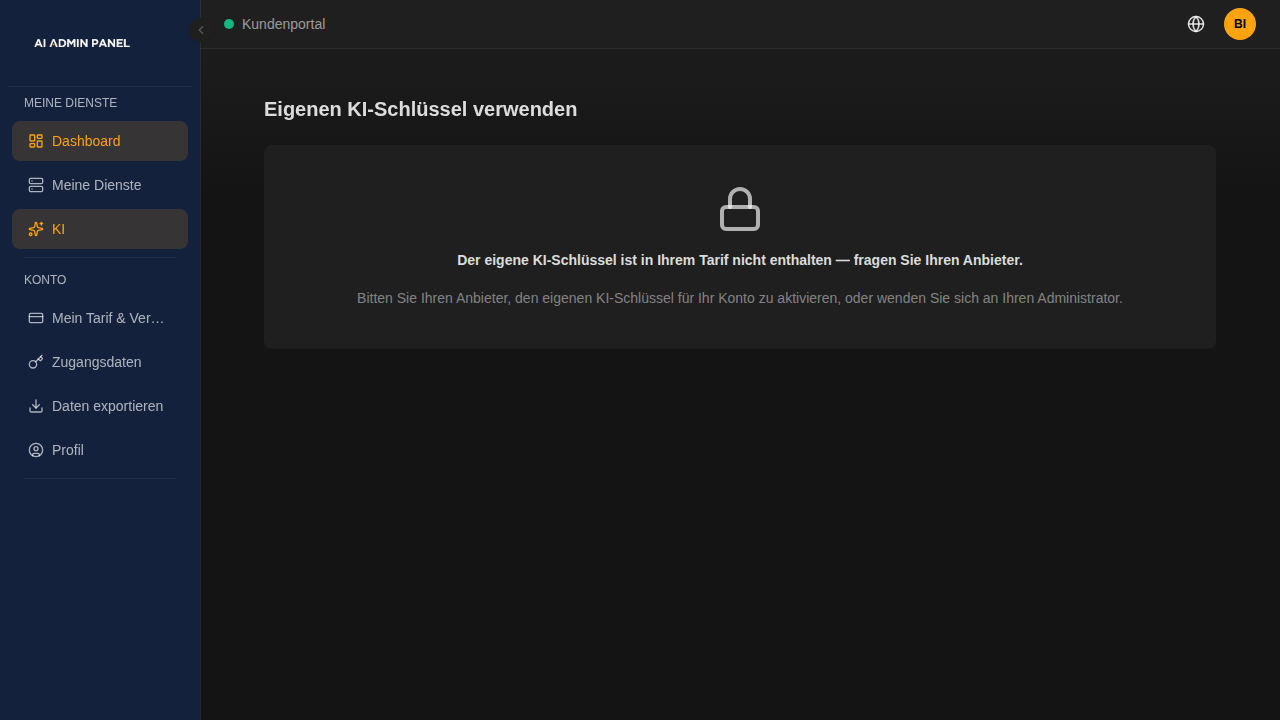
A locked capability card explains when access is unavailable.
The provider form does not echo the saved key; a blank field preserves it. This is a property of that form, not a claim that authorized Secrets reveal is impossible. Keys can be vault-backed or use legacy encrypted-column fallback; see Secrets Manager. Container environments contain resolved values and are visible to administrators with host/Docker access.
Metered AI (sell your own AI)
Enable Metered AI, set plan/customer budget and rate limits, and let the customer create a gateway key from the portal AI page. Compatible apps can use that key for the gateway, and the portal reports imported spend. The configured gateway pricing and budget are usage controls; the panel does not collect the customer's payment.
For external OpenAI-compatible access, configure DNS for ai.<your-domain> and verify HTTPS at the gateway's /v1 endpoint. Usage import is asynchronous, so a spend display is not a real-time invoice.
Two limitations matter when offering the service:
- The shared operator/local source remains available to deployments using that source; enabling Metered AI does not make all existing AI traffic billable.
- Native-Ollama template injection can reach the engine directly, bypassing the OpenAI-compatible metering gateway.
Review the source and application protocol before promising budget coverage. Existing installations may need gateway database/configuration changes; a panel image update alone does not perform them. Have the hosting administrator apply the release's upgrade procedure with backups, then verify gateway access and usage before enabling customer billing. Keep database and provider keys out of commands copied into logs or tickets.