Managing customers
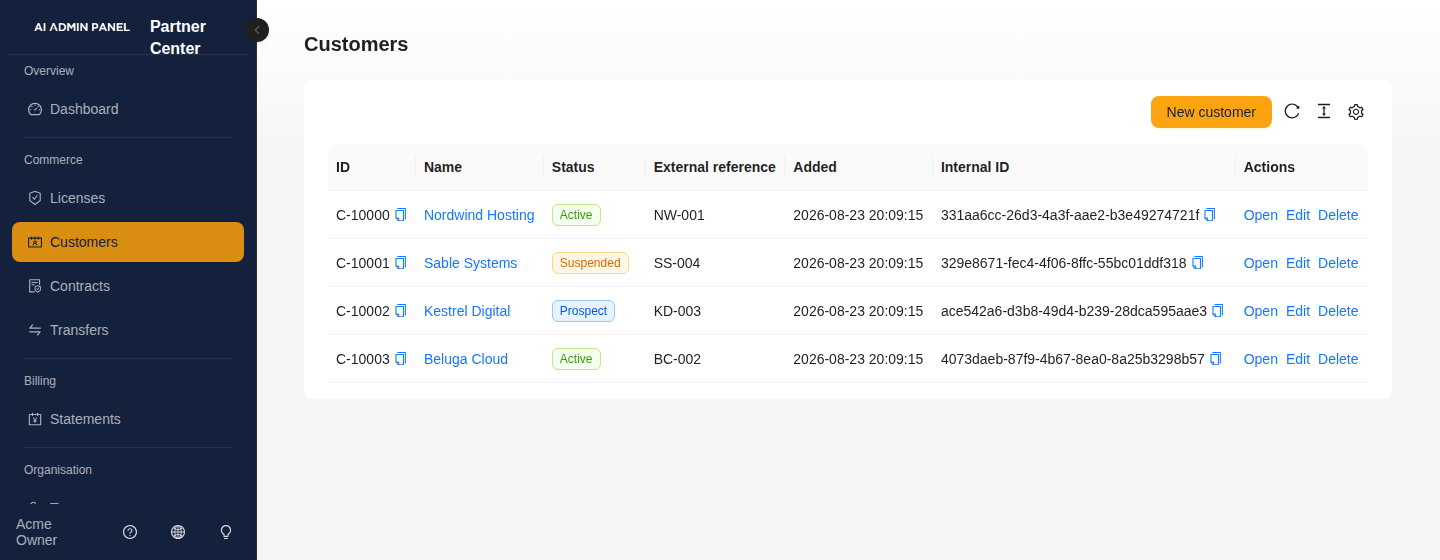
A customer is the record you attach licenses to. It's your own bookkeeping — the company or person you sold a panel to — and you create and maintain these yourself on the Customers page in Partner Center. We never create them for you, and we don't need to see them before you can use them.
You need a customer before you can issue a license, so this is usually the first thing you do for a new account.
Who can change customers
| Role | Can add / edit / delete? |
|---|---|
| Owner | ✅ Yes |
| Member | ✅ Yes |
| Billing | ❌ No — read only |
| Read-only | ❌ No — read only |
Everyone in your team can see your customers, the whole record included — contacts, notes and history. That is deliberate: billing and read-only are exactly the seats that need to look an account up when someone calls. What they cannot do is change any of it. If you don't see a New customer button, or Edit company details on a record, your role is read-only for this page.
Adding a customer
Go to Customers and click New customer. Two fields, deliberately:
- Name — how the customer appears everywhere else in the portal: in the licenses table, in the issue-license form, and on your statements. Use the name you'll recognize when reconciling a bill.
- External reference (optional) — your own id for this account: a CRM number, a customer id from your billing system, whatever you key off. We store it and show it back to you; we never interpret it. This is the field that makes matching a statement against your own books practical, so it's worth filling in even though nothing forces you to.
Everything else — the address, the VAT id, the people you deal with there — lives on the customer record and can be filled in whenever you like. The form is short on purpose: you usually add a customer because you are about to issue them a license, and a fifteen-field form in the way of that helps nobody.
None of this is visible to the customer. It's your record of them, not their profile.
The customer record
Click a customer's name to open its record. This is where an account is actually understood, and it has four tabs.
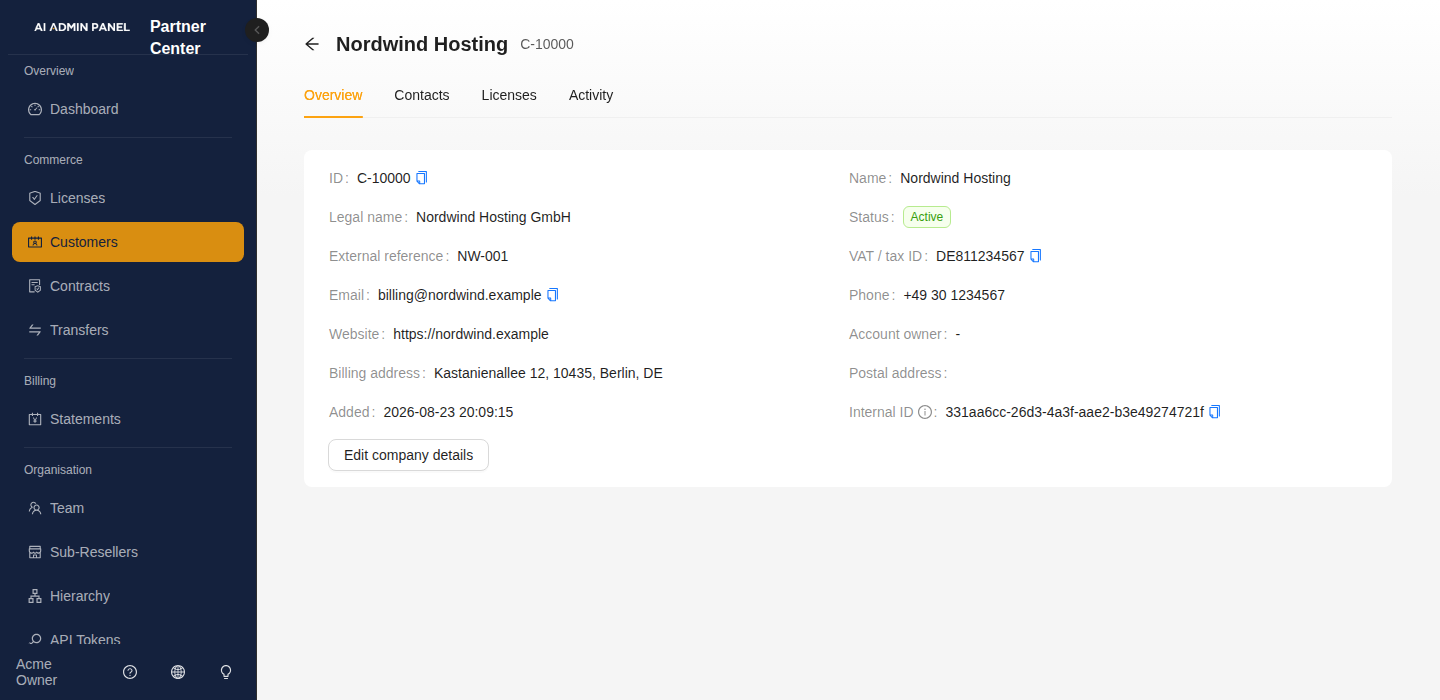
Overview — who this company is
The company card: legal name, VAT or tax id, website, a general email and phone, a billing address and a postal address (they are separate because they genuinely differ — the invoice goes to accounts, the letter goes to the office), the account owner on your side, and a status.
Click Edit company details to change any of it. A rename takes effect everywhere the name is shown — including on licenses already issued, since the license points at the customer record rather than carrying a copy of the name. Renaming is safe: it changes nothing commercial and breaks no running panel.
Status is your own lifecycle label, and nothing in the product acts on it — it does not suspend a license or stop a bill:
| Status | What it means |
|---|---|
| Prospect | You're talking to them; nothing sold yet. |
| Active | A normal, running account. This is the default. |
| Suspended | A bookkeeping label. License suspension is a separate action; it is not a container-stop command. |
| Churned | They've gone. Kept so your statement history still makes sense. |
Country is a two-letter code — DE, FR, US. Anything else is refused, because a column that holds both DE and Germany and deutschland can't answer "which of my customers are in Germany?" later.
At the bottom of the card is Internal ID — a long value like 9d8c7b6a-5e4f-3d2c-1b0a-9f8e7d6c5b4a. That is the identifier our database and the Partner API use. It's copyable here, and also available as the last column of the customers list on a wide screen — as it is on the licenses and contracts lists, which carry the same column for the same reason.
You almost never need it. Quote the C- number on a support ticket or down the phone — that is what it exists for, and it's the one anyone else will recognise. Reach for the Internal ID only when you're making an API call about this specific customer.
The two sit at opposite ends of the row on purpose. They look alike at a glance, and the failure worth avoiding is pasting a 36-character UUID into a support ticket where a C- number was wanted — nobody at the other end can do anything with it.
Contacts — who you actually call
A customer is a company. The people there are contacts, and you can have as many as you need: the technical person, the one who pays the invoice, the one who signs.
Each contact has a name, a role, an email, a phone number, and a language — which is the one to write to them in. Each also gets its own identifier (P-5042), so you can quote a person on a support ticket the same way you quote an account.
One contact can be marked primary: the person to call when you don't know who else to ask. Marking a second person primary moves the flag rather than adding another — a record with two answers to "who do I call" is no better than one with none.
Licenses — what they have
Every license belonging to this customer, so you can answer "what are they running?" without going to the Licenses screen and matching up ids yourself.
Activity — what happened
One timeline, newest first, holding two things:
- Events we recorded: a license issued, suspended, resumed, terminated, transferred in or out. Each one names who did it and which channel it came through.
- Notes your team wrote, each with who wrote it and when.
Click Add note to write one. A note cannot be edited or deleted once saved — that is the point of it. A note records what someone knew at the time, and one that could be quietly rewritten later would be worth no more than the single free-text box this replaced. Write it as though someone will read it back to you in six months, because they might.
Accounts that existed before the record was introduced still have a full timeline: their older events are reached through their licenses.
A summary sits above the timeline — how many times each kind of thing has happened on this account, ever. It does not change when you filter; it is what you read before choosing a filter. Every number is a link: click it and the timeline below narrows to exactly the events it counted.
Filter the timeline by event, by who did it, or by date range. Two things are worth knowing about the Who filter:
- It answers within your account only. Filtering by someone at another partner returns nothing, which is the same answer a typo gives — you cannot learn who works anywhere else from this screen.
- Some older events show Actor not recorded. Attribution was added in a later release and the timeline is append-only, so events written before it have no record of who performed them and never will. Choose Not recorded in the Who filter to see exactly those. Without that option, any Who filter would silently hide them.
Export CSV downloads the timeline as it is currently filtered — not just the part on screen. The file is generated on request. Existing events are append-only, but new events can be added, so the same filters can produce a different file tomorrow. If a result would exceed 5000 rows the download stops there and says so, rather than handing you a partial file that looks complete.
Deleting a customer
Click Delete on the row and confirm. This cannot be undone.
A customer with a non-terminal license attached cannot be deleted. If you try, the portal refuses with:
This customer still has a license attached and cannot be deleted.
This is deliberate, and it's the one rule on this page worth understanding rather than working around. A license has to belong to somebody: if a customer could be deleted out from under one, you'd be left with a live, billing license pointing at a record that no longer exists — visible on your statement, attached to nothing you can identify.
What counts as "still attached" is any license that isn't finished: active, trial, or suspended (and any other state except terminated or expired). Licenses in a terminal state — terminated or expired — do not block the delete, because they aren't going to bill again and their history stays on the statements that already recorded them.
So the order is: deal with the licenses first, then delete the customer.
- If the customer is genuinely gone, terminate their licenses (see managing licenses) and then delete the record.
- If they're moving to another partner in your downline, transfer the customer instead of deleting — a whole-customer transfer carries every license with it. See transfers.
- If you're only pausing them, suspend the license and leave the customer in place. A suspended license still blocks the delete, which is the point: paused is not finished.
Deleting a customer is rarely the right tool for "this account ended". Terminating the license is what ends the commercial relationship; the customer record is just the label on it, and keeping it means your statement history still makes sense a year from now.
Troubleshooting
| What you see | What it means |
|---|---|
| No New customer button | Your role is billing or read-only. Ask an owner or member in your organization. |
| "This customer still has a license attached and cannot be deleted." | An active, trial, or suspended license is still on this customer. Terminate or transfer it first. |
| A customer you didn't create | Customers created by anyone in your team appear for everyone, and a transfer can move a customer to you from elsewhere in the tree. |
| "Country must be a two-letter code" | Use the ISO code — DE, not Germany or de. |
| You can't edit or delete a note | Correct, and deliberate. Notes are a record of what was known at the time. Add a new note correcting the old one; both stay, in order. |
| Marking a contact primary un-marked another | There is one primary contact per customer, so promoting someone moves the flag rather than adding a second. |
| The customer list looks short on a phone | Narrow screens hide the less important columns. Turn the phone sideways or use a laptop — nothing is lost. |