Partner Center
Partner Center is where you manage AI Admin Panel licensing for your customers. If you're a distributor, reseller, or hosting company selling or bundling AI Admin Panel, this is the portal where your licenses, customers, contracts, and monthly statements live.
Sign in at partners.aiadminpanel.com. You'll get an email invitation from us the first time an account is created for you — click the link, set a password, and you're in.
The invitation comes from noreply@aiadminpanel.com, subject "Your AI Admin Panel Partner Center invitation", and arrives in your language. The link is single-use and expires in 12 hours — if yours has lapsed, ask whoever invited you to send it again. If it isn't in your inbox, check spam before assuming it never arrived.
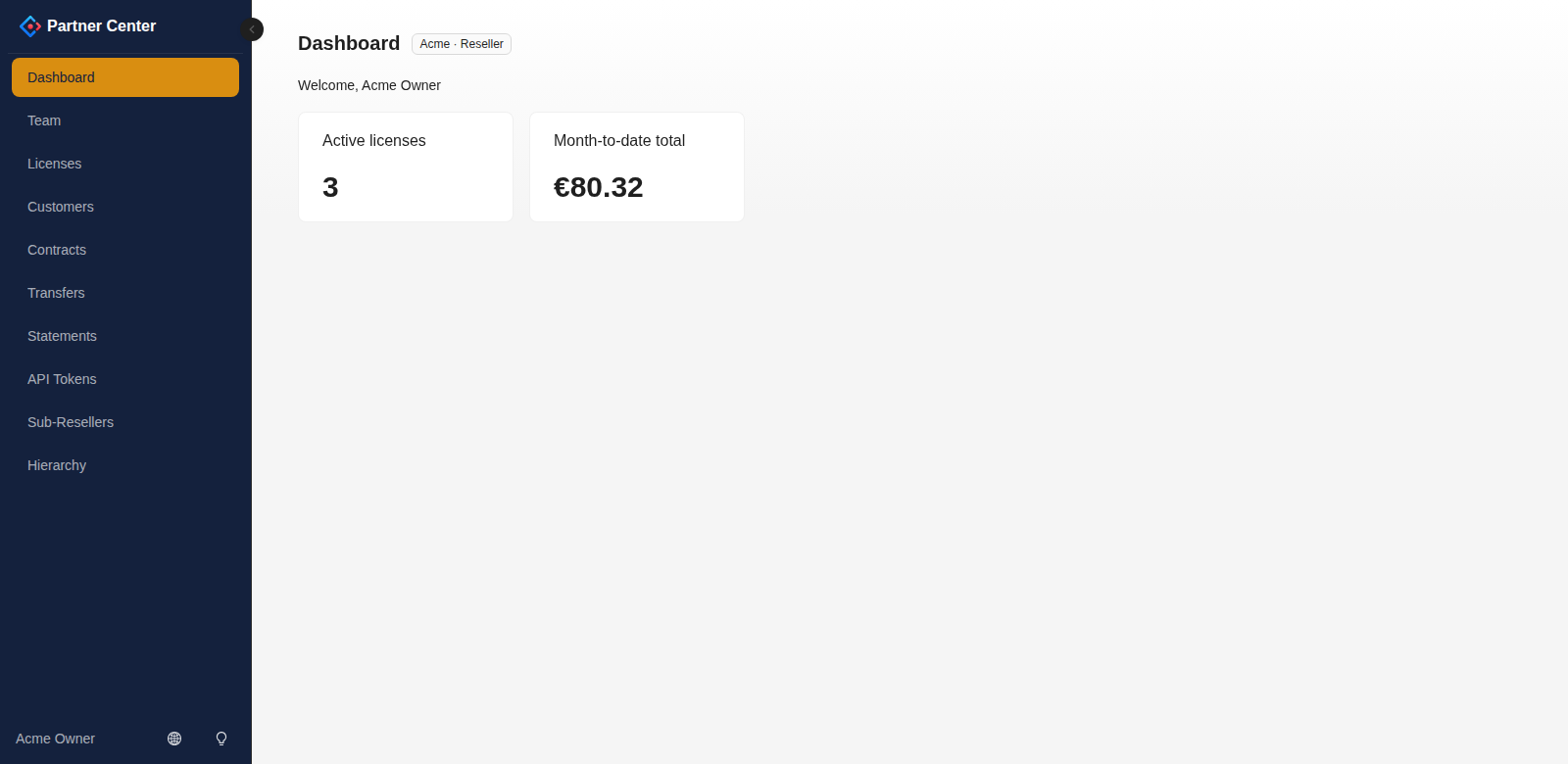
What you'll find inside
When you log in you land on your dashboard — a running count of your active licenses and this month's usage so far. From the sidebar you can reach:
- Customers — the end-customer records you attach licenses to. You can add, edit, and remove them yourself.
- Licenses — every license in your account (and any sub-resellers below you). Issue a new license to a customer, and suspend, resume, terminate, or change the edition of existing ones — all from here.
- Contracts — the commercial terms we've agreed with you (your pricing model, any caps or prepaid packs). These are set by us and shown here read-only, so you always know what you're working against.
- Statements — your monthly bill from us, built up automatically and finalized after each month closes. This is what you reconcile against.
- Team — the people in your organization who can log in, and what each can do (see roles below).
- Sub-Resellers — the partners below you. Create a new one (which invites its first owner), rename, suspend or resume them.
- Hierarchy — where you sit in the tree: who supplies you, and everything beneath you.
- API tokens — credentials for the supported automation endpoints on the Partner API.
On a phone
Partner Center works on a phone — signing in, checking licenses, and pulling up a statement all behave the same as on a laptop.
Two things are worth knowing so nothing looks broken. Wide tables scroll sideways on their own: swipe left and right across the table to reach the columns beyond the edge of the screen, rather than scrolling the whole page. And a narrow screen hides the less important columns — you'll see what identifies each row, its status, and the buttons that act on it, while detail like internal reference ids, "created" dates, and contract small print is held back so the table stays readable.
Nothing is lost when that happens: turn the phone sideways, or open the same page on a tablet or laptop, and every column comes back.
Who can do what
Everyone you invite gets one of four roles:
| Role | What they can do |
|---|---|
| Owner | Everything — run the account, manage the team, manage tokens, manage the downline. |
| Member | Day-to-day operations: manage customers and licenses, create and manage sub-resellers in your subtree, transfer within your subtree, manage API tokens. Cannot manage the team. |
| Billing | Read operational records and export own-account statements. No changes, API tokens, or Sub-Resellers management page. |
| Read-only | Read operational records and export own-account statements. No changes, API tokens, or Sub-Resellers management page. |
Two things about this table are easy to misread, so they're worth stating plainly:
- Members can manage your downline. A member can create and manage sub-resellers inside your subtree — which also invites that sub-reseller's owner. What a member cannot do is add a teammate to your own partner; that stays with owners.
- Billing and read-only get no access to API tokens at all — not even a read-only view of the list. This is deliberate rather than an oversight: an API token can itself issue licenses, so being able to see the token list is already more privilege than those roles are meant to carry. They see a short notice on the API tokens page explaining this.
Changing someone's role
Open Team, find the person, and click Change role. The change takes effect on their next request — they don't need to be re-invited, and they keep the password they already set.
There is one rule the portal will not let you break: a partner must always have at least one Owner. If you try to remove or demote the last remaining Owner, the change is refused with an explanation rather than going through. This is not bureaucracy — managing the team is an Owner-only power, so a partner with no Owner could never invite anyone again, including a replacement Owner. Everything else would keep working, which is exactly what makes it easy to do by accident and painful to undo.
To hand the account over, promote the incoming person to Owner first, then demote or remove the outgoing one. If you have already ended up with no Owner, contact us — we can restore access from our side.
Issuing a license
You issue a new license to a customer yourself, from the Licenses page — click Issue license, pick the customer, contract, and edition, and the license key is shown to you once. Owners and members can issue; billing and read-only roles cannot. Full walkthrough: Issuing licenses.
For marketplace provisioning, the Partner API issues a key when your integration requests one. Automatic activation requires a configured provisioning integration; issuing a key alone does not install or activate the customer's panel.
Adding a sub-reseller
You create the partners below you yourself, from the Sub-Resellers page — click New sub-reseller, and the partner and its first owner's invitation are created together. Owners and members can create; billing and read-only cannot. You can also rename, suspend and resume anyone in your downline from the same page. Full walkthrough: Managing your sub-resellers.
Handing an account to a sub-reseller
You can move a single license, or a whole customer and every license under it, to any partner in your downline — from the Transfers page. Owners and members can move; everyone can read the history. Full walkthrough: Transferring licenses and customers.
Learn more
- Managing customers — add, edit and delete the records you attach licenses to, and why a customer with a live license can't be deleted.
- Issuing licenses — issue a new license, what each field means, and the one-time key.
- Managing licenses — suspend, resume, terminate and change edition; what each state means and which choices are reversible.
- Managing your sub-resellers — create the partners below you, rename/suspend/resume them, and see where you sit in the tree.
- Transferring licenses and customers — move a license or a whole customer book to a sub-reseller, and how billing splits at the effective date.
- API tokens — mint and revoke the credentials your automation uses, and which scope to pick.
- Statements — how your monthly bill is calculated, the statement lifecycle, and how to download CSV/JSON.
- Partner API — automate the published licensing, customer, token, transfer, usage, and statement endpoints. Team management, sub-resellers, contracts, customer-book moves, and vendor operations use the portal.