Deploy Your First Service
This walkthrough guides you through deploying your first service using the template catalog. We will deploy Uptime Kuma, a lightweight uptime monitoring tool, as it requires minimal configuration and starts quickly.
Step 1: Log In
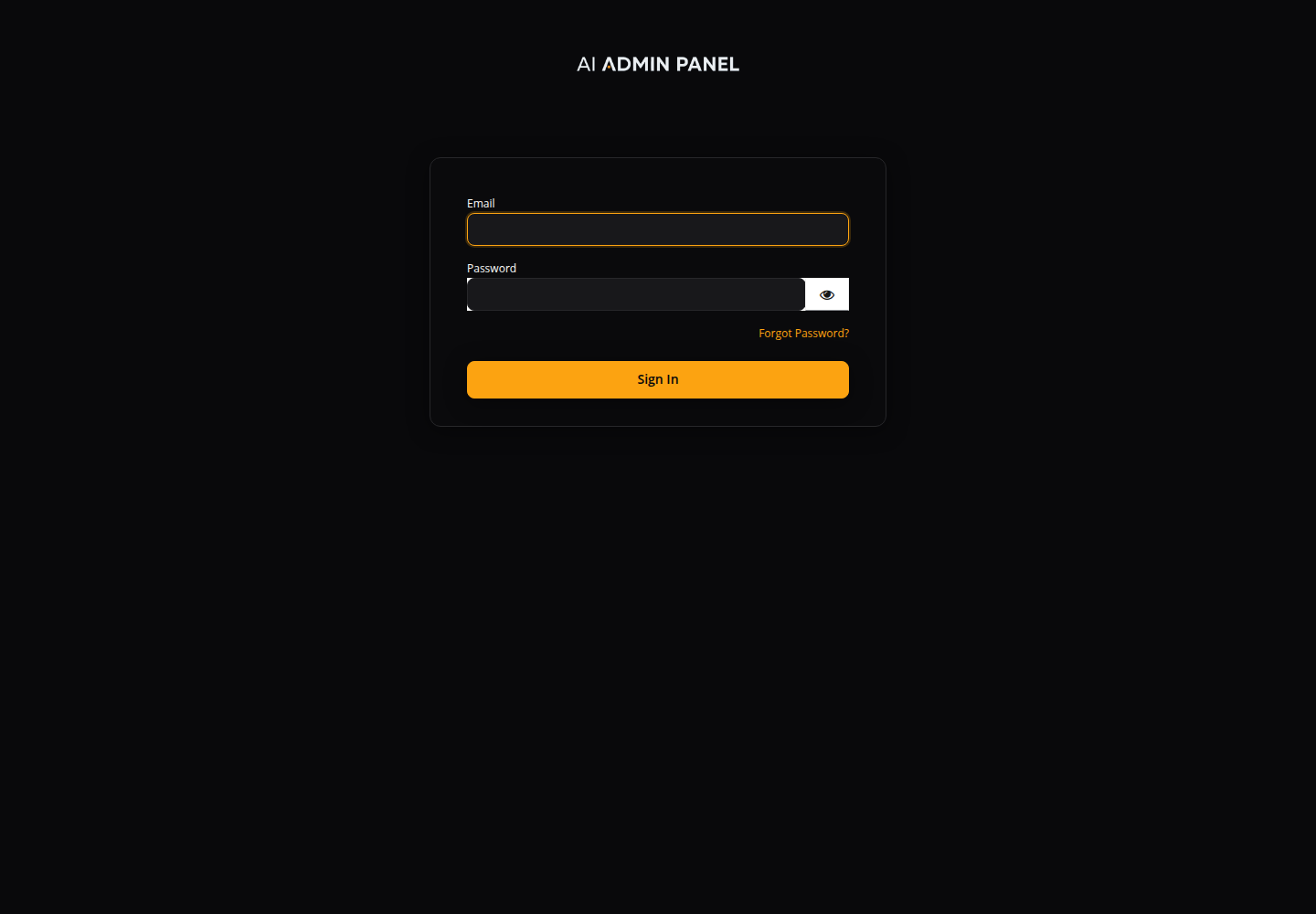
Open the panel URL printed by the installer. Complete the setup wizard if it appears, then choose Sign In. Use the installer-created admin@{PANEL_DOMAIN} account and its generated password on the Keycloak login page (see Installation).
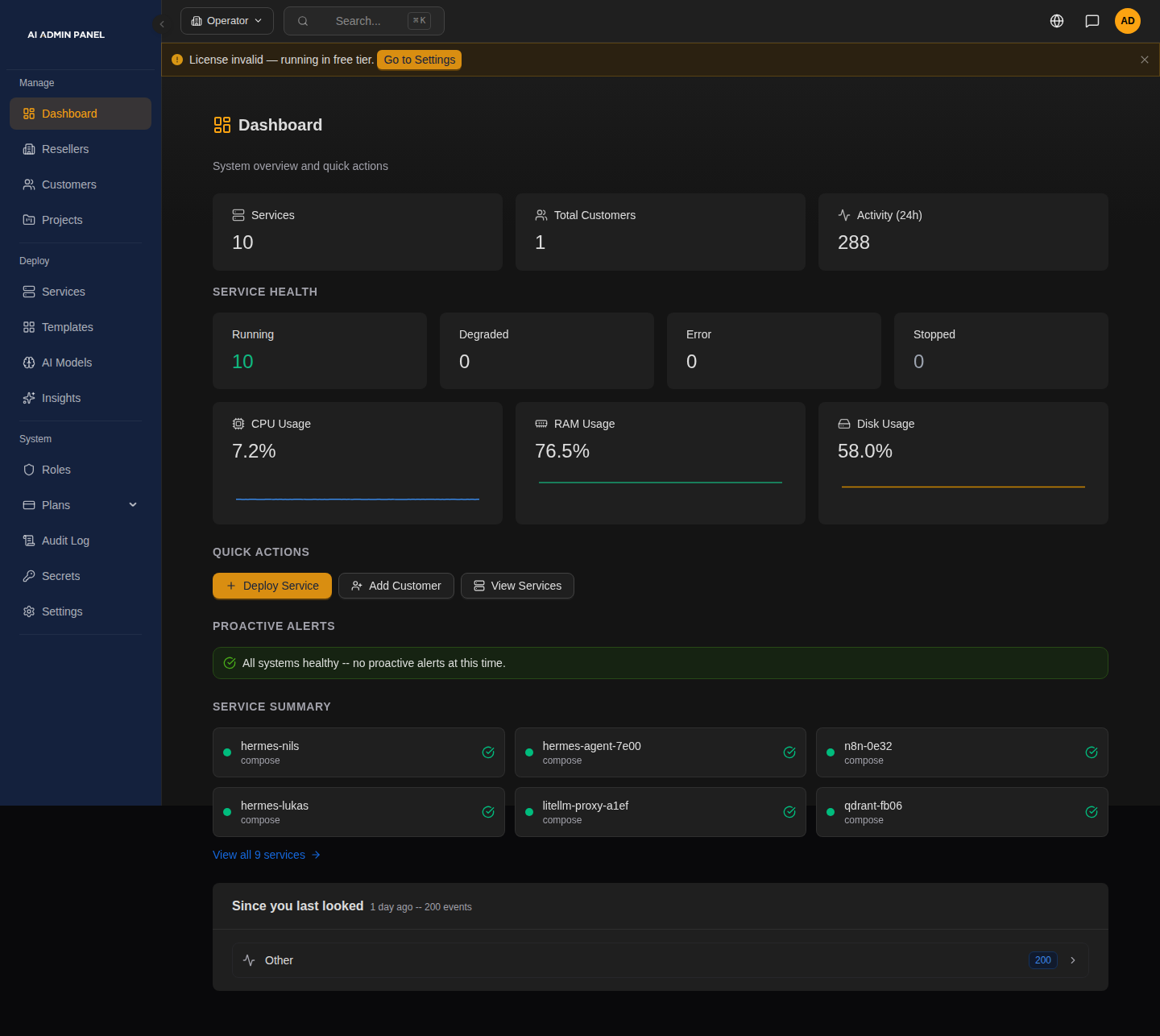
After signing in, the dashboard gives you an overview of service health and resource use, with a Deploy Service shortcut. This seeded example shows an existing installation; a fresh installation will have different counts. The licence warning reflects this demo's state.
Step 2: Navigate to Templates
Open Templates in the sidebar. Services also offers deployment entry points for Template, Git, AI-powered, and Compose workflows; this guide uses a template.
Step 3: Browse the Catalog
Search for Uptime Kuma, or select DevTools. You can also browse AI Services, Databases, and Web Apps. In this version the unfiltered catalog shows only the first page of results, so use search or a category if a template is missing. Coming Soon cards can be inspected but do not offer deployment.
Step 4: Configure the Service
Open Uptime Kuma, then click Deploy to reach its configuration form. Review:
- A description of the service
- Minimum resource requirements
- Configurable variables
Choose the service name and review ownership:
| Field | Example Value | Description |
|---|---|---|
| Service Name | uptime-monitor | Used to generate the service subdomain; use the final URL shown by the panel |
| Customer | Select the intended customer when applicable | Optional ownership assignment; check it before deploying |
Uptime Kuma has minimal configuration — most templates will have additional fields for passwords, database names, and other settings.
Step 5: Deploy
Keep the default Secure mode for this walkthrough, review the resource limits, then choose Next: Review. Correct any required-field or resource warning before selecting Deploy. The panel will:
- Generate a Docker Compose configuration from the template
- Create the service record in the database
- Pull the container image
- Start the container with Traefik labels for routing
- Report the deployment result and generated service URL
You can watch the deploy progress in real time via the WebSocket-powered progress banner — it shows a calculated percentage from the worker's step counter (pre-deploy validation → pull images → create network → start containers) and updates automatically when the deploy completes, so no page reload is needed.
Step 6: Verify
After deployment succeeds, open the URL shown by the panel. With the example name and no subdomain collision, it can look like:
https://uptime-monitor.panel.example.com
You should see the Uptime Kuma setup wizard. Create its application administrator on first visit; this is separate from your panel login. Image downloads and certificate issuance can take time. If deployment fails, inspect the service logs and deploy error before retrying. A Running status alone does not prove the application URL works.
Step 7: Check Services
Open Services. Your new service appears with:
- Status: Running (green)
- URL: The auto-assigned subdomain
- Resource usage: CPU and memory consumption
- Actions: Start, Stop, Restart, Logs, Delete
What Just Happened
Behind the scenes, the panel:
- Read the Uptime Kuma template YAML spec
- Generated a Docker Compose file with Traefik routing labels
- Created a DNS record (if Cloudflare is configured)
- Pulled the container image from Docker Hub
- Started the container on the Docker network
- Configured a Traefik route for the assigned subdomain
- Used Traefik to handle HTTPS with the configured certificate resolver
- Began monitoring the container health
Next Steps
- Deploy an AI service like Ollama or LibreChat
- Set up a customer account for multi-tenant management
- Try Git Deploy with your own project
- Configure notifications for deploy alerts